
Ultimate Guide to Fix White Screen Issue on iPhone 2023
In this article, we'll delve into the various solutions you can explore if you're facing the issue of white lines on your iPhone screen.
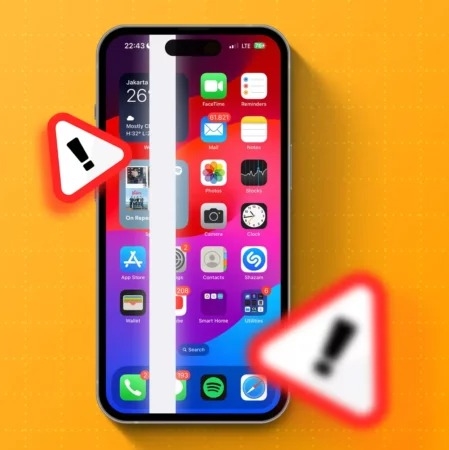
Just as a trusty sidekick, your iPhone is constantly by your side, ensuring that you are always connected, well-informed, and entertained. Yet, there are moments when those annoying white lines pop up on your screen out of nowhere, causing a little hiccup in your digital experience.
Don’t fret, we have the perfect solution for you!
In this article, we’ll delve into the various solutions you can explore if you’re facing the issue of white lines on your iPhone screen.

What’s Behind the Appearance of White Lines on iPhone Screens?
This problem can arise from a multitude of reasons. Let’s explore some of the most frequent culprits:
Software Glitches:
The appearance of white lines on your iPhone screen can often be attributed to a problematic app, one that’s incompatible or outdated, or even as a result of an operating system update. When software encounters these issues, they may manifest as those pesky white lines on your screen.
Physical Damage:
A lot of folks have mentioned seeing white lines on their iPhone screens following accidental drops.
It’s crucial to keep in mind that subjecting your phone to excessive pressure or physical impact can disrupt the internal components of the screen, potentially damaging them and resulting in display problems for your phone.
Flex Cable Issue:
The flex cable, which you might know as a ribbon cable or flat cable, plays a crucial role in linking your iPhone’s display panel with the motherboard. “This component serves as the primary connection between the display module and the internal circuitry of the device.” If this cable becomes loose or sustains damage, it can interrupt the signal flow, resulting in an unusual display on the screen.
Incompatible or Outdated Firmware:
Every physical component of your phone is equipped with its own set of instructions or software, collectively known as firmware, to ensure smooth operation. Occasionally, this firmware can become corrupted, incompatible, or outdated, and this can lead to the iPhone screen displaying those bothersome white lines.
Ways to Resolve White Lines on Your iPhone Screen:
If you’re facing this problem, you’re in the right place! We’ve put together the best methods to tackle this issue, whether you’re dealing with white horizontal lines on your iPhone screen or pixelated white lines – we’ve got you covered!
The Most Effective Way to Resolve White Lines on Your iPhone Screen
Dealing with white lines on your iPhone screen can be quite challenging, but there’s no need to fret! Dive into our in-depth guide on resolving this problem, featuring the standout method, ReiBoot – iOS System Repair (No Data Loss), along with other helpful solutions:
Method 1: Charge your iPhone again after Draining the Battery Completely
To attempt a fix for the white lines on your iPhone screen, you can drain the battery completely until it’s out of power and then recharge it. This process might reset the phone screen and address any software-related problems that are causing the white lines to appear.
Method 2: Give the screen a gentle press to address those white lines on your iPhone screen, especially if they appeared after a drop.
Lightly press your fingers in the vicinity of the affected area to assist in repositioning any loose internal connections that may have been disrupted by the drop.
Method 3: Update your iPhone (iOS version)
Ensure your iPhone is up to date by navigating to Settings > General > Software Update. Keeping your device current can resolve software-related problems that might be responsible for the appearance of white lines on the screen.
Method 4: Force Restart of your iPhone
Based on your iPhone model, follow the appropriate steps to force restart it. To remedy the problem, simply press the appropriate buttons until the iconic Apple logo appears.
- For an iPhone 7 series, perform a force restart by pressing and holding the Volume Down and Power buttons simultaneously until you see the Apple logo.
This will certainly aid in resolving the issue. - For those with an iPhone 8 or a more recent series, perform a quick press and release of the Volume Up button, followed by the Volume Down button, and finally, keep holding the Side button until the Apple logo appears. Such an action should prove helpful in settling the issue.
Method 5: Restore your iPhone via iTunes
Connect your iPhone to your computer with iTunes, then select your device, head to the Summary section, and click on “Restore Device.” Keep in mind that this action will erase all your data and settings, but it can potentially resolve software-related issues responsible for the appearance of those white lines. Be sure to back up your data before proceeding.
Method 6: Using iOS Repair Tool (ReiBoot- iOS System Repair)
ReiBoot is a versatile iOS system recovery software that’s fully compatible with iOS 17 Beta. This powerful tool is specifically crafted to address over 150 system glitches commonly encountered on iPhones, iPads, and tvOS devices. These issues range from persistent Apple logo freezes to being trapped in endless recovery mode cycles. With its convenient one-click entry and exit from Recovery Mode, along with its capabilities for downgrading and macOS repair, ReiBoot offers a seamless user experience without the risk of data loss.
To address an iPhone screen displaying a white line using Tenorshare ReiBoot, simply follow these steps:
- Download and install Tenorshare ReiBoot on your window computer by visiting this link.

- Connect your iPhone to the computer using a data cable, ensuring that your iPhone is in recovery mode.

- Launch Tenorshare ReiBoot and click on the green “Start” button located on the main interface.

- You’ll come across two options here, Standard Repair and Deep Repair. Depending on your preference, select “Standard Repair” to continue. This will initiate the download of the required firmware for your iPhone.
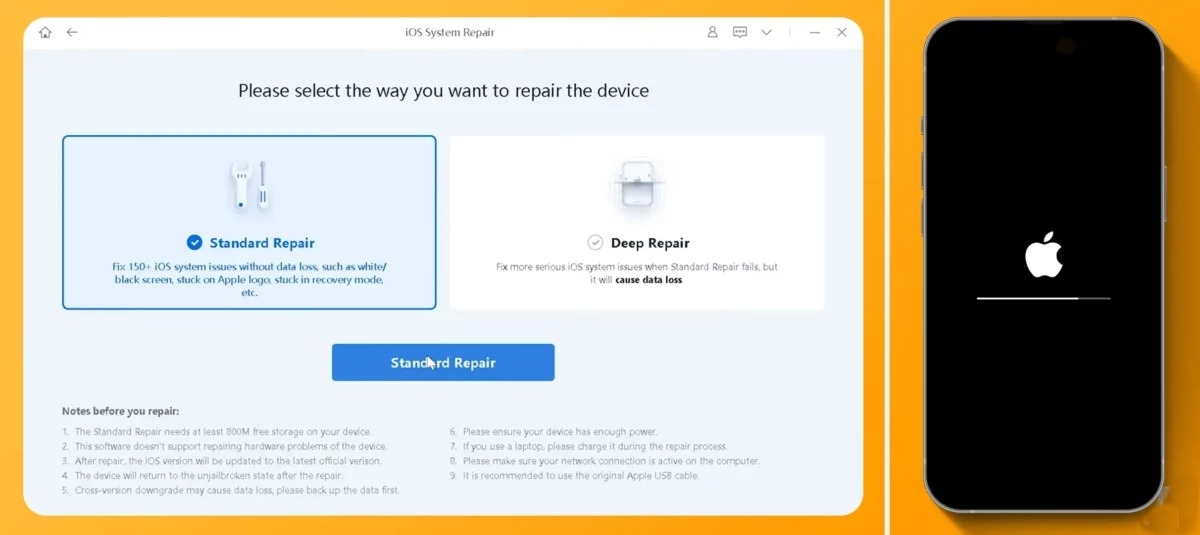
Note: We recommend Standard Repair so you don’t have to worry about doing anything
- Click on “Download” and patiently wait for the firmware package to finish downloading.

- Next, go ahead and click on “Start Standard Repair.”

- Now, be patient and wait for the process to finish. Your iPhone will undergo a restart, and the problem with white lines on the screen should be resolved.

- Now, simply tap the “Done” button.
Method 7: Factory Reset Your iPhone
Consider performing a factory reset to bring your device back to its original settings. Just remember to back up your crucial data first, as this process erases everything on your device. One potential remedy for addressing problems caused by troublesome iOS updates or apps could be the implementation of an effective solution.
Method 8: Contact Apple Support (Repair the screen):
If none of the methods mentioned above resolve the issue, it’s probable that the problem is due to hardware damage. In such instances, it’s advisable to get in touch with Apple Support or pay a visit to an Apple Store for expert assistance. They will be able to assist you in either repairing or replacing the affected screen.
Review of the Above Methods
[table id=10 /]Conclusion:
Having white lines appear on your iPhone screen can be extremely aggravating. However, the great thing is that there are multiple solutions that can help resolve this issue. One particularly useful tool is Tenorshare ReiBoot, known for its user-friendly interface and effective repair methods. It’s often recommended for addressing lines on an iPhone screen, especially after a drop. We’re confident that this information will assist you in tackling any inquiries you may have about the white lines appearing on your iPhone screen.
FAQs:
How much does fixing the white line on iPhone screen cost to fix?
The expense of fixing white lines on an iPhone screen can fluctuate depending on the nature of the issue. For hardware problems like a loose ribbon cable, the cost can vary from $50 to $250, depending on the severity of the problem. On the other hand, if it’s a software-related issue, basic troubleshooting methods should suffice, and it won’t incur any additional cost.
Are these white lines on the phone screen permanent?
White lines on your iPhone screen aren’t always a permanent issue. Their fixability depends on the underlying cause. When encountering a software-related issue, there are a few things you can try to solve it. Some solutions include restarting, updating, or performing a hard reset. However, if the problem is related to hardware, it’s best to consult a professional for assistance.
